


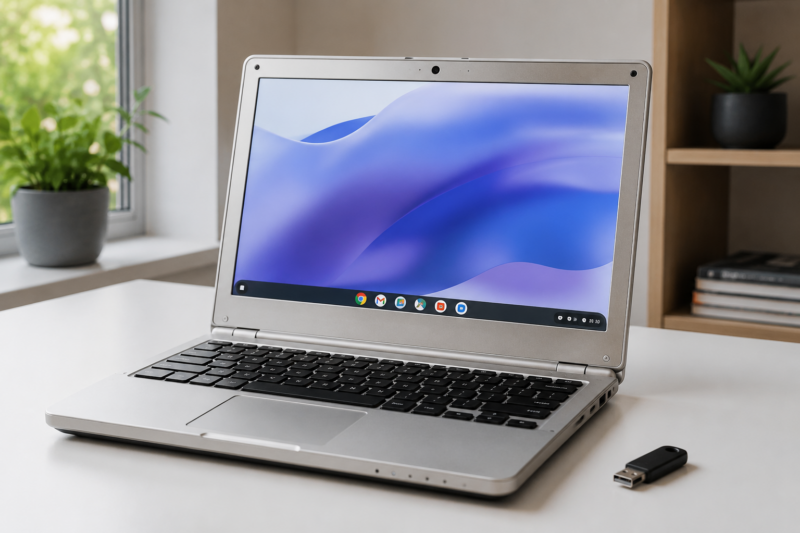
ChromeOS Flex is one of the better ways to keep an aging laptop useful in 2026, but it is not a universal fix for every old PC or Mac. It works best when the hardware is healthy, the model is certified or at least behaves well in testing, and the owner’s daily work mostly happens in the browser.
That distinction matters now that Windows 10 support has ended and Microsoft’s consumer Extended Security Updates program only buys time through October 13, 2026. Many perfectly serviceable laptops still fall outside Windows 11’s official requirements. For a machine used for email, school portals, documents, video calls, streaming, banking, and web apps, ChromeOS Flex can be a sensible second life instead of a forced replacement.
It should still be treated as a compatibility decision, not a casual upgrade. ChromeOS Flex is Google’s free operating system for many older PCs, Macs, and Linux devices, built around Chrome, cloud storage, automatic updates, and web apps. When the fit is right, it can feel clean and quick. When the hardware or workflow is wrong, the limits appear immediately.
Who ChromeOS Flex Is For
ChromeOS Flex gives older hardware a Chromebook-like experience: Google account sign-in, Chrome at the center, cloud files, background updates, and a simpler software surface than a traditional desktop operating system. That makes it a strong fit for a spare family laptop, a student writing machine, a travel device, a simple work computer, or a hand-me-down laptop that mainly needs a safe browser.
The advantage is focus. ChromeOS Flex does not try to turn an old laptop into a workstation. It narrows the job to tasks aging hardware can still do well: Gmail, Google Docs, Microsoft 365 on the web, Slack, Zoom, YouTube, Spotify, banking sites, password managers, and other browser-based tools.
It is also safer than using an unsupported Windows 10 installation for accounts, passwords, email, or banking. ChromeOS Flex cannot make a failing laptop new, but it can replace a cluttered and unsupported software environment with one that is still actively maintained.
Where It Is The Wrong Choice
ChromeOS Flex is not a drop-in Windows replacement. If the laptop still needs Windows-only apps, local PC games, advanced Adobe workflows, engineering tools, specialty printer utilities, VPN clients with unusual requirements, or line-of-business software, ChromeOS Flex is probably the wrong path. Those jobs need Windows, a fuller Linux setup, remote desktop access, or newer hardware.
It is also not identical to a new Chromebook. Google notes that ChromeOS devices include security hardware and firmware integrations that ChromeOS Flex systems do not have. Flex has to work with hardware designed for another operating system, so the experience can vary by model.
The feature gaps matter. ChromeOS Flex does not offer the full Google Play Store and Android app experience many Chromebooks have. Parallels Desktop for running Windows virtual machines is not supported. Linux development environment support can vary. Browser-first users may never care, but anyone expecting a full Chromebook or a complete Windows substitute may be disappointed.
Check Certification Before Installing
The most important step is checking Google’s certified models list. Google tests and maintains ChromeOS Flex support for many individual PC and Mac models, with end-of-support dates and model-specific status notes. A machine outside that list may still boot, but Google does not promise full performance, stability, or feature support.
Do not rely on a broad product name. Two laptops with similar branding can use different Wi-Fi chips, webcams, trackpads, graphics hardware, or firmware. A device can appear to run ChromeOS Flex and still have frustrating problems: unreliable Wi-Fi, broken Bluetooth, a missing webcam, poor sleep behavior, non-working brightness keys, bad audio, weak graphics acceleration, or flaky external-display support.
Google’s minimum requirements are modest:
- Intel or AMD x86-64-bit processor
- 4 GB of RAM
- 16 GB of internal storage
- Ability to boot from a USB drive
- Full administrator access to BIOS or UEFI settings
Minimum requirements are not the same as a good experience. An older laptop with 8 GB of RAM, an SSD, a healthy battery, and dependable wireless hardware will feel far better than a low-end machine that barely clears the line. Failing storage, an overheating processor, or a dead battery will not be fixed by ChromeOS Flex.
Test From USB Like It Is The Real Computer
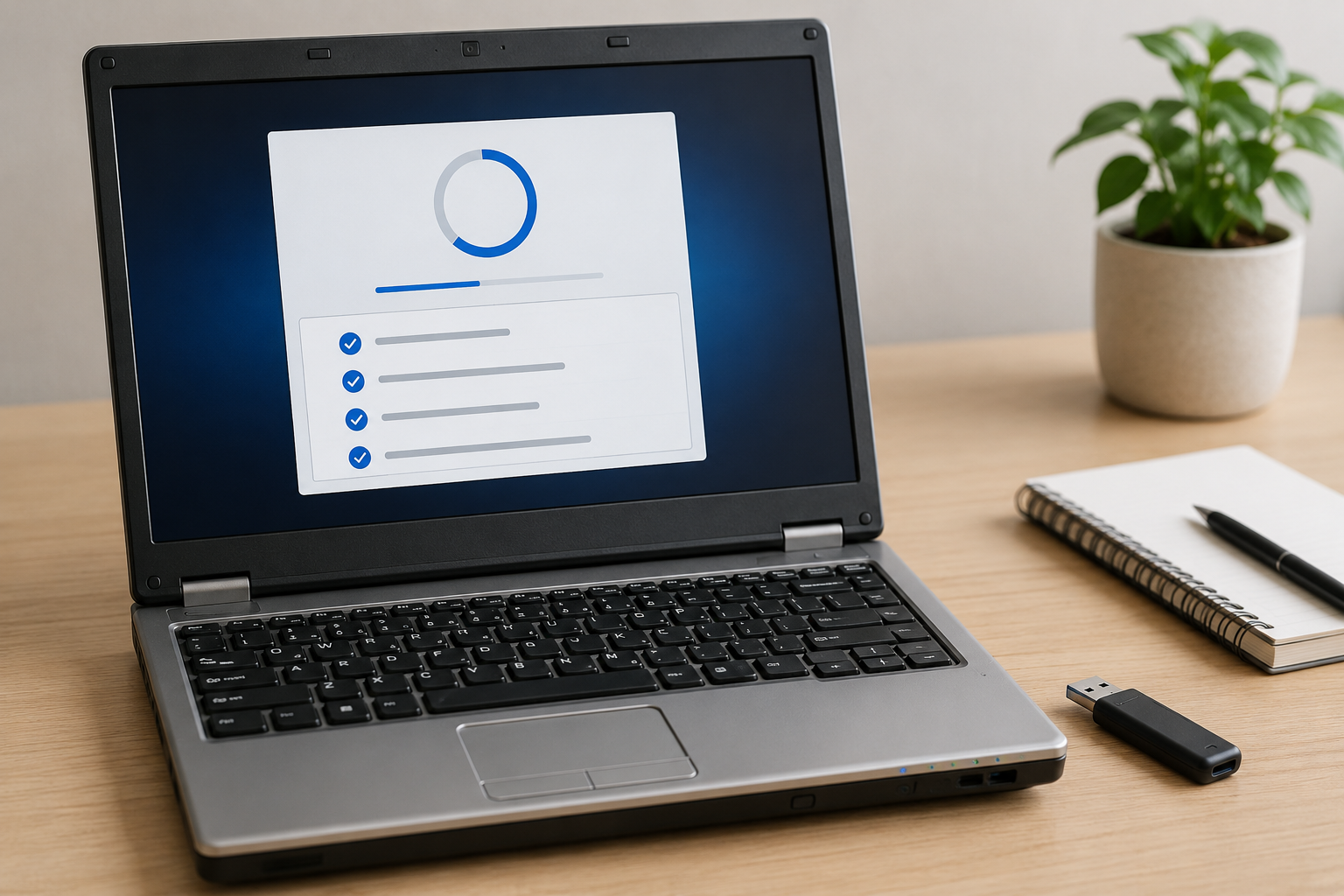
ChromeOS Flex’s best safety feature is the USB trial. Google’s installer lets you boot the old computer from a USB drive and try ChromeOS Flex before erasing the internal drive. That trial should be treated as a full compatibility test, not a quick look at the desktop.
Connect to Wi-Fi. Play audio. Test the webcam and microphone in an actual call. Move around with the trackpad. Adjust brightness. Close and reopen the lid. Plug in the charger. Try Bluetooth if you use it. Connect an external monitor if that matters. Open the web apps you rely on, including school, work, banking, printing, password-manager, and video-call workflows.
The installation is destructive. Once ChromeOS Flex is installed on the internal drive, the old operating system and local files are erased. Back up documents, photos, downloads, tax files, browser exports, and anything else you need. Then confirm the backup opens on another device before installing.
How To Decide
ChromeOS Flex makes sense when three things line up: the hardware works well in the USB trial, the user’s daily apps are browser-based, and the person using the laptop is comfortable living without traditional desktop software. If all three are true, the laptop may feel far less cluttered and easier to maintain.
It is a weak choice when the hardware is physically failing. A dead battery, unreliable charger, broken keyboard, failing SSD, cracked hinge, or overheating processor will remain a problem. ChromeOS Flex can make the software lighter, but it cannot repair the machine.
The user matters too. For a parent, child, student, or less technical family member, ChromeOS Flex can be easier to maintain because there are fewer local apps and update decisions. For a tinkerer who wants full control and local software flexibility, Linux may be more satisfying. For someone who wants guaranteed polish, a new Chromebook is still the calmer option.
ChromeOS Flex vs. The Alternatives
ChromeOS Flex sits between several choices. If the computer officially supports Windows 11 and still needs Windows apps, Windows 11 is the most direct path. If it cannot support Windows 11 but the user wants local software, a beginner-friendly Linux distribution may be better. If the goal is the cleanest ChromeOS experience with Android apps and guaranteed hardware support, buying a Chromebook is safer.
Microsoft’s Windows 10 ESU program is a bridge, not a long-term plan for most consumers. It can buy security-update time through October 13, 2026, but it does not turn an unsupported Windows 10 laptop into a modern system. ChromeOS Flex, Linux, replacement, donation, recycling, or repurposing still need to be considered.
A Practical Checklist
- Identify the exact laptop model, not just the brand or product family.
- Check Google’s certified models list and note the support status and end-of-support date.
- Back up all local files before making changes.
- Create a ChromeOS Flex USB installer.
- Boot from USB and test Wi-Fi, audio, webcam, microphone, trackpad, sleep, display, charging, Bluetooth, and external monitors.
- Confirm that your real web apps, printing needs, video calls, and file workflows are acceptable.
- Install ChromeOS Flex only when you are ready to erase the internal drive.
That process prevents the most common regret: discovering a missing driver, unsupported app, or workflow problem after the old setup is gone.
Bottom Line
ChromeOS Flex is worth trying on an old laptop that still works, especially if the alternative is leaving it unused or running an unsupported operating system. It can make aging hardware feel clean, secure, and useful again for everyday browser-based tasks.
The best results come from realistic expectations. Check certification, test from USB, understand the app limits, and treat installation as a reuse project rather than a miracle upgrade. When the fit is right, ChromeOS Flex can turn a forgotten PC or Mac into a simple, low-cost computer for the work many people actually do every day.

